Day 18/100 of DevOps
Day 18: Configure LAMP server
xFusionCorp Industries is planning to host a WordPress website on their infra in Stratos Datacenter. They have already done infrastructure configuration—for example, on the storage server they already have a shared directory /vaw/www/html that is mounted on each app host under /var/www/html directory. Please perform the following steps to accomplish the task:
a. Install httpd, php and its dependencies on all app hosts.
b. Apache should serve on port 5003 within the apps.
c. Install/Configure MariaDB server on DB Server.
d. Create a database named kodekloud_db7 and create a database user named kodekloud_roy identified as password 8FmzjvFU6S. Further make sure this newly created user is able to perform all operation on the database you created.
e. Finally you should be able to access the website on LBR link, by clicking on the App button on the top bar. You should see a message like App is able to connect to the database using user kodekloud_roy
LAMP server = Linux + Apache + MySQL/MariaDB + PHP
This task simulates a real-world web application deployment using a 3-tier architecture inside a data center called Stratos Datacenter.
We are being asked to:
- Host a WordPress-like PHP website on multiple application servers.
- Connect it to a database server.
- Access it through a load balancer.
So our final goal, is to show that all the app servers can talk to the database.
Let’s just understand the architecture first:
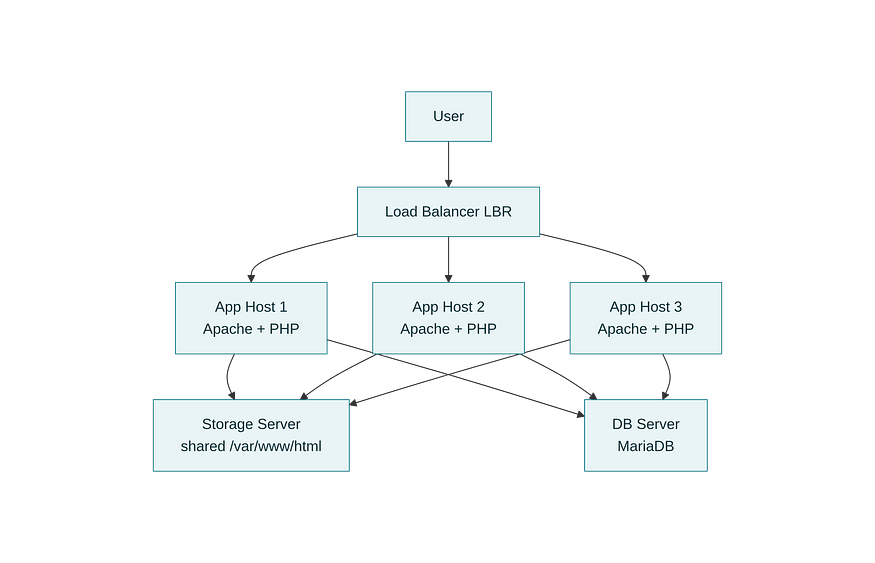
So, from the above diagram, we have a user, who clicks on the app link. What happens in the background is that the request reaches the load balancer and it directs the request to one of the 3 app servers [on port 8083]. Now, the app server must serve the PHP application, which includes executing PHP code that connects to the database, retrieves or verifies data, and then returns a response back to the user.
Now, let’s proceed for step by step implementation.
Log in to your app servers.
You can simultaneously login to all three of the app servers (stapp01, stapp02 and stapp03) in three different terminals. We need to do the same steps for all the three app servers. I will explain with respect to one server. You can perform the same with the remaining servers.

Now let’s install and step up the app server
- Install Apache (httpd) → web server.
# Install Apache (httpd).
[tony@stapp01 ~]$sudo yum install -y httpd
- Install PHP → so Apache can run PHP apps (like WordPress).
# Install PHP and required dependencies.
[tony@stapp01 ~]$ sudo yum install -y php php-mysqlnd php-cli php-common php-gd php-xml php-mbstring

- Configure Apache to listen on port <port> instead of 80.
# Configure Apache to listen on port <5003>.
sudo vi /etc/httpd/conf/httpd.conf
*# Find this line:
Listen 80
# And change it to:
Listen <5003>
Also validate if DocumentRoot is "/var/www/html".*

- Make sure Apache is running and enabled.
[tony@stapp01 ~]$ sudo systemctl start httpd
[tony@stapp01 ~]$ sudo systemctl enable httpd
[tony@stapp01 ~]$ sudo systemctl status httpd

- Validate if you httpd service is listening on port <port> [5003 in my case].
[tony@stapp01 ~]$ sudo ss -tulnp | grep httpd

Log in to your DB server
ssh peter@stdb01
Install and setup user with permissions in MariaDB
# Update the system:
[peter@stdb01 ~]$sudo dnf update -y
- Install MariaDB server
# Install MariaDB server.
[peter@stdb01 ~]$sudo dnf install -y mariadb-server
- Start and enable it
[peter@stdb01 ~]$ sudo systemctl start mariadb
[peter@stdb01 ~]$ sudo systemctl enable mariadb
[peter@stdb01 ~]$ sudo systemctl status mariadb

- Login to the DB as root user:
[peter@stdb01 ~]$sudo mysql
- Create:
— — Database:kodekloud_db7CREATE DATABASE kodekloud_db7;— — User:kodekloud_roy— — Password:8FmzjvFU6SCREATE USER 'kodekloud_roy'@'%' IDENTIFIED BY '8FmzjvFU6S';
- Grant full privileges on that database to the userGRANT ALL PRIVILEGES ON kodekloud_db7.* TO 'kodekloud_roy'@'%';- Apply the changes:
FLUSH PRIVILEGES;
- Vaidate the permissions:
SHOW GRANTS FOR 'kodekloud_roy'@'%';
Verify
